

Tags help you organize your documentation beyond categories by adding quick, contextual labels to each document. While categories define where a document belongs, tags describe what the document is about, making it easier for users to find relevant content. In PinkDocs, tags improve search accuracy, enable better filtering, and help the AI assistant understand the intent of a document. Resulting in faster, more relevant answers for your users.
Step by Step Guide
- Go to PinkDocs → Documents from your WordPress dashboard
- Click Add New Document or open an existing document you want to edit
- In the right sidebar, scroll down to the Tags section
- Click inside the Add New Tag input field
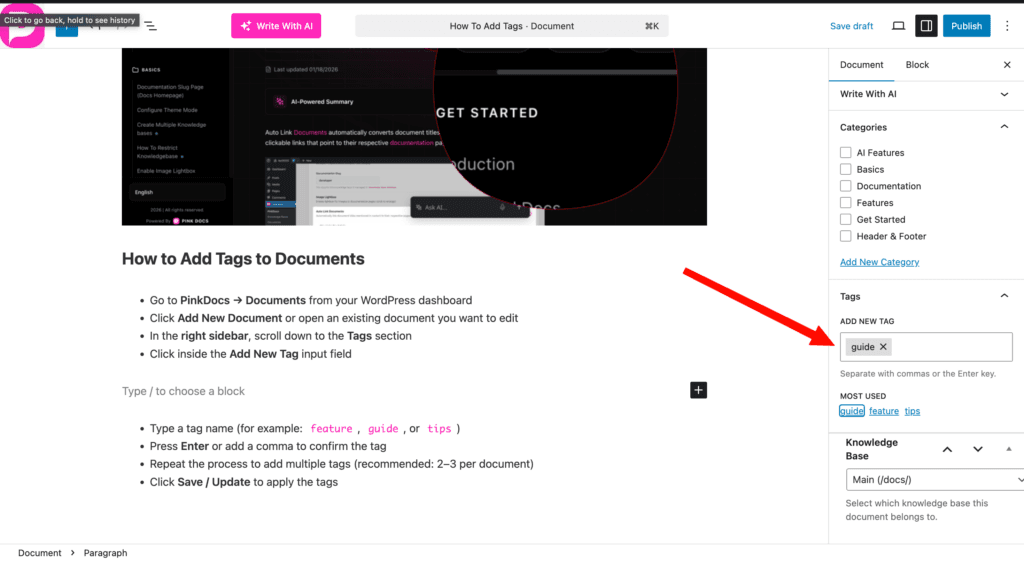
- Type a tag name (for example:
feature,guide, ortips) - Press Enter or add a comma to confirm the tag
- Repeat the process to add multiple tags (recommended: 2–3 per document)
- Click Save / Update to apply the tags
How Users Can Filter Documents Using Tags
Tags allow users to quickly filter documents based on specific topics or intent, without navigating through categories.
Filtering with Tags
- Open the documentation frontend
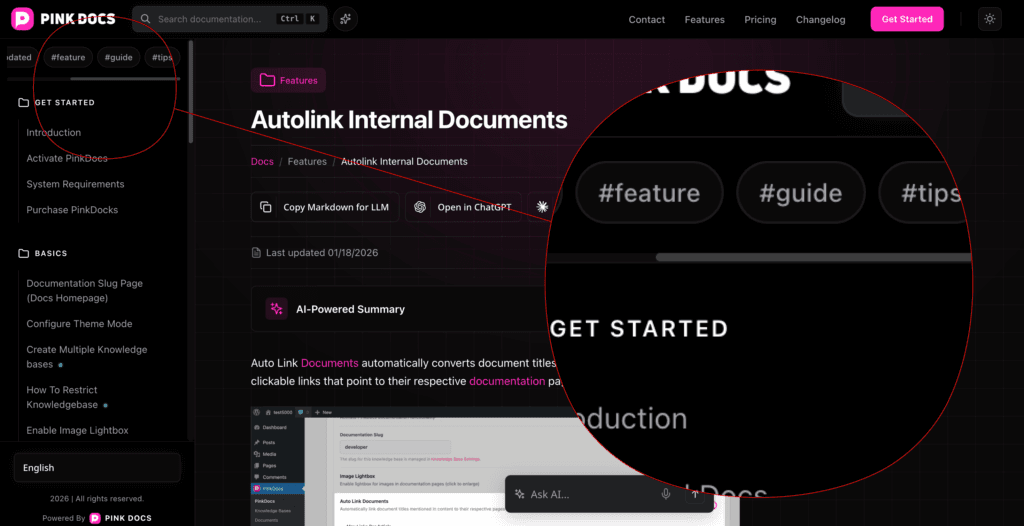
- Locate the Tags section in the sidebar
- Click on a tag (for example:
guide,feature, ortips) - The document list instantly updates to show only documents associated with that tag
- Click the same tag again or select another tag to change or clear the filter
What Happens When a Tag Is Selected
- Only documents that include the selected tag are shown
- The active tag is visually highlighted in the sidebar
- Users can quickly switch between tags to explore related documents
Why Tag Filtering Is Useful
- Helps users find content by intent, not structure
- Works well for cross-category topics
- Makes large knowledge bases easier to navigate
Tags are especially useful when the same topic appears in multiple categories, allowing users to discover related documents faster.
– Tags for each document are displayed at the end of the document
– Clicking on a tag from the document opens the search view with that tag already selected
– This makes it easy to discover other related documents with the same tag
Backend (Admin) – Managing Tags
Admins can use tags to quickly sort and locate documents directly from the WordPress backend.
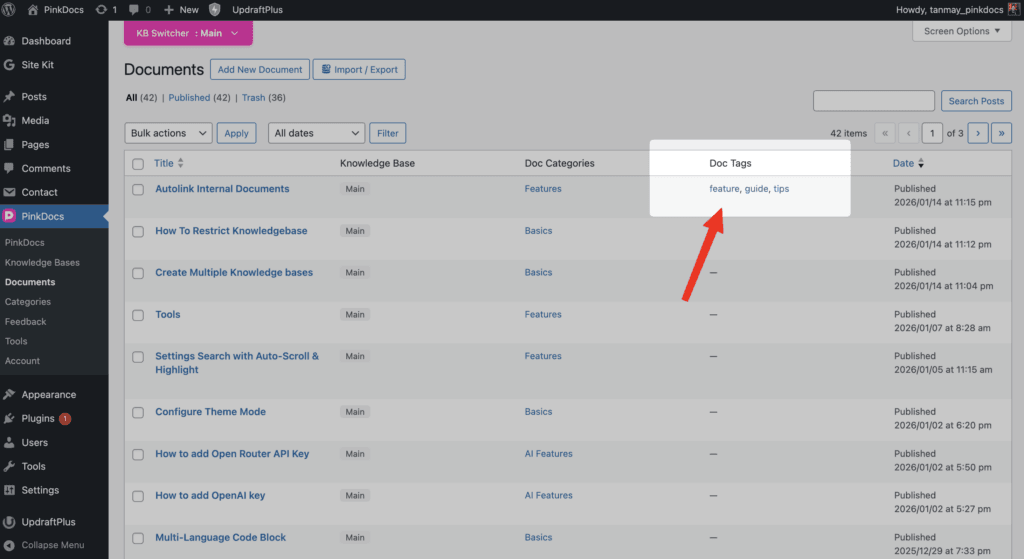
- In PinkDocs → Documents, tags are shown in the Doc Tags column
- Clicking on a tag in this column automatically filters the document list
- Only documents associated with the selected tag will be displayed
Summary
Tags give admins a fast and flexible way to organize, sort, and manage documents at scale. By using tags consistently, you can quickly filter related content in the backend, simplify bulk updates, and maintain a clean documentation structure. When used alongside categories, tags ensure your knowledge base stays easy to manage for admins and easy to explore for users