

PinkDocs allows you to assign custom icons to documentation categories. These icons help users quickly recognize sections and improve visual navigation.
Once set, category icons are displayed in:
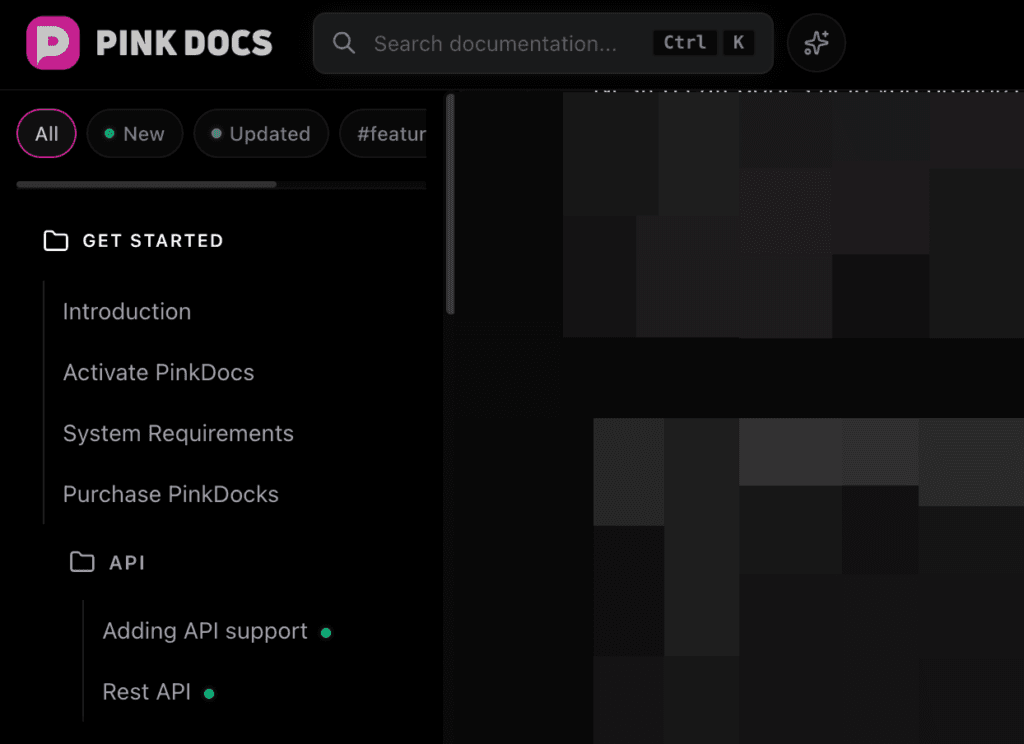
- The left sidebar (next to category names)
- The category badge shown on individual document pages
You can add or change icons for both new categories and existing categories at any time.
Supported Icons

PinkDocs uses Lucide Icons, a clean and modern open‑source icon set.
- Icons are lightweight and consistent with the PinkDocs UI
- You only need to enter the icon name (no SVG upload required)
- Browse available icons at: https://lucide.dev/icons
Add an Icon to a New Category
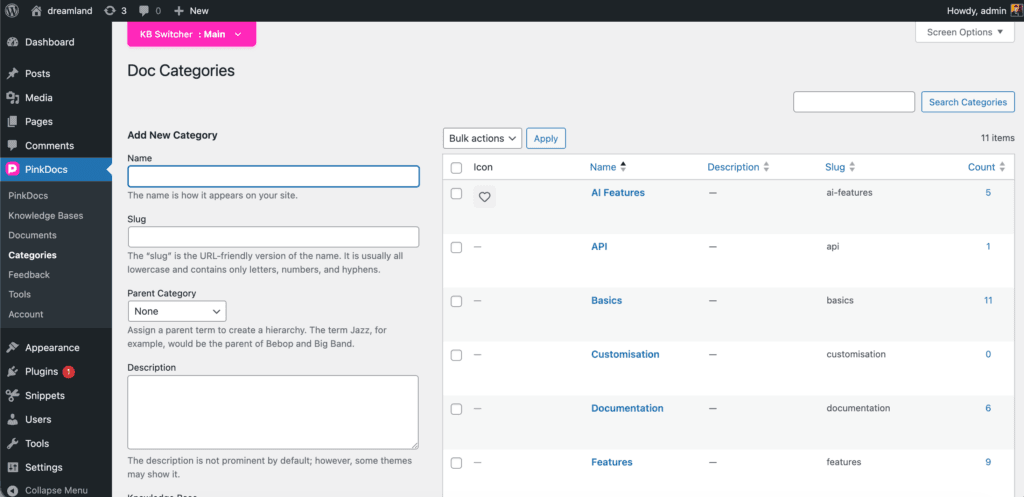
Follow these steps when creating a new documentation category:
- Go to WordPress Dashboard → PinkDocs → Categories
- Under Add New Category, fill in the category details:
- Name
- Slug (optional)
- Parent Category (optional)
- Select the Knowledge Base this category belongs to
- Scroll to the Category Icon section
Option 1: Quick Select Icons
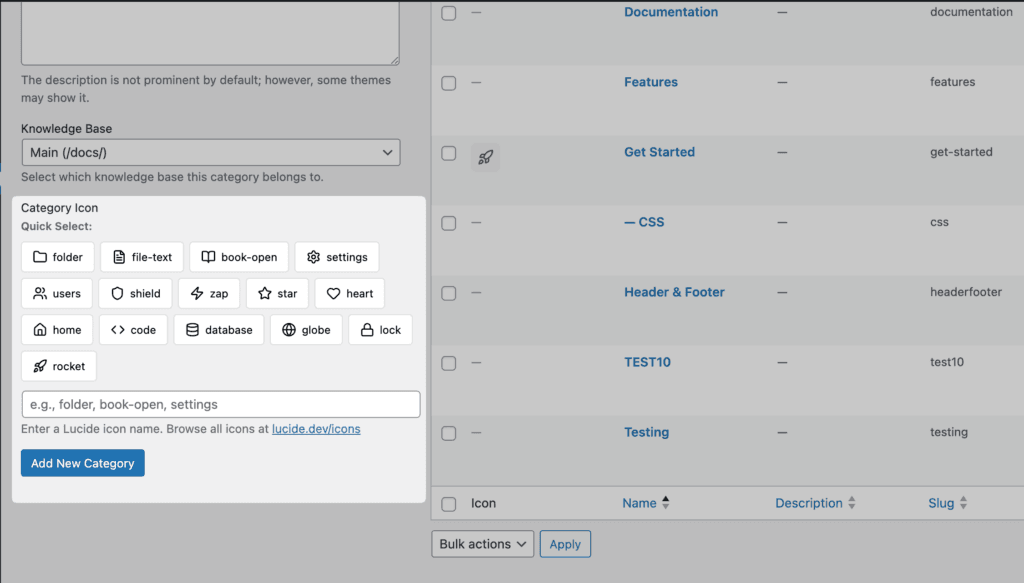
- Click any icon from the Quick Select list
- The selected icon is instantly applied
Option 2: Enter Icon Name Manually
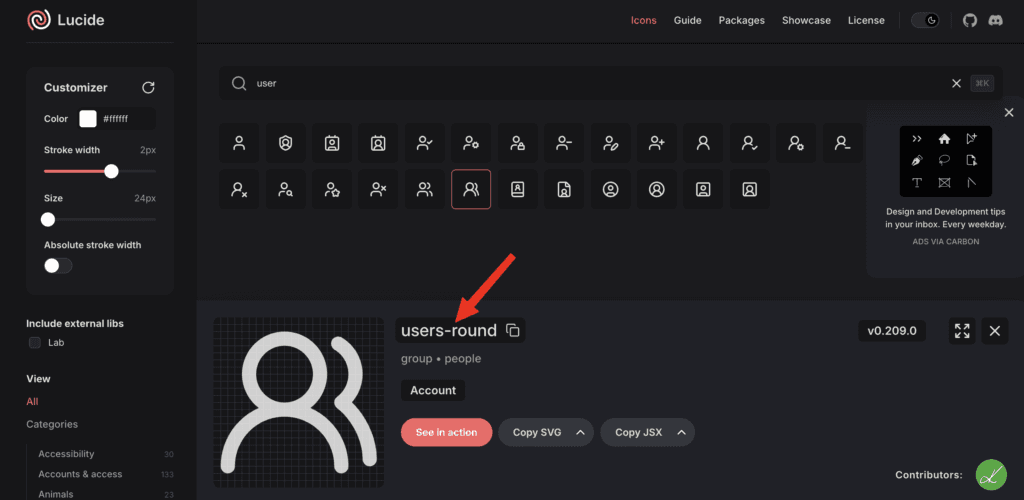
- Type a Lucide icon name (for example:
folder,book-open,settings) - This is useful if the icon you want is not shown in Quick Select
- Click Add New Category
The icon will now appear in the sidebar and category badges.
Where Icons Are Displayed
Once configured, category icons are shown in multiple places:
Sidebar Navigation
- Icons appear next to category names in the left sidebar
- Helps users visually scan and identify sections faster
Category Badge on Document Pages
- The category badge displayed near the document title includes the icon
- Provides context about which category the document belongs to
Recommended Icon Usage
To keep your documentation clean and consistent:
- Use one icon per category (avoid frequent changes)
- Choose icons that clearly represent the category purpose
- Keep similar icon styles across categories
Example Icon Choices
book-openfor guides or documentationsettingsfor configuration or setupcodefor developer or API docsshieldfor security‑related contentrocketfor getting started or onboarding
Notes and Limitations
- Only Lucide icon names are supported
- Custom SVG or image uploads are not supported for category icons
- Icons automatically adapt to light and dark modes
Summary
Custom category icons in PinkDocs help improve navigation and visual clarity. You can easily assign or update icons when creating or editing categories, and they will appear consistently across the sidebar and document pages.
Using clear and meaningful icons makes your knowledge base easier to explore and more enjoyable to use.