

PinkDocs lets you attach videos to individual changelog items. This is useful for showing feature demos, UI walkthroughs, or quick explanations directly inside your release notes.
Where to find this setting
Go to WordPress Admin → PinkDocs → PinkDocs Settings → Changelog.
This opens the Version Logs screen where you manage releases and change items.
How to add a video to a changelog item
- Open an existing version or create a new one using Add Version.
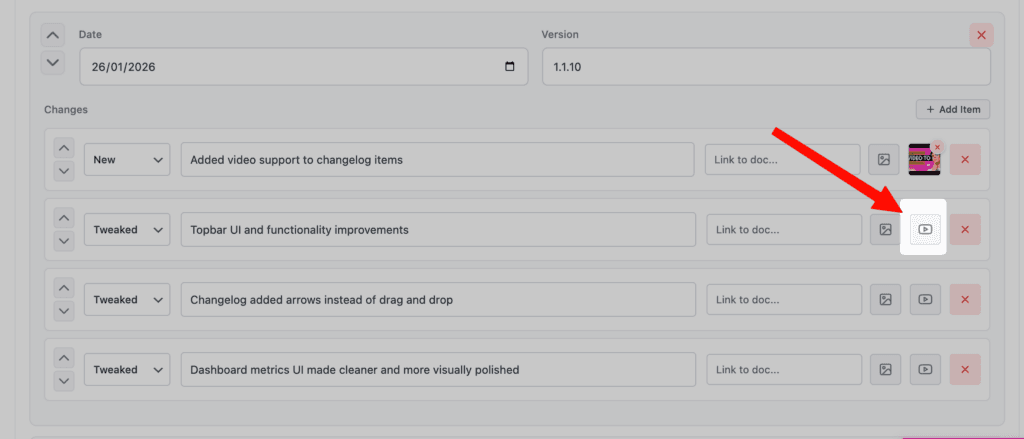
- Under Changes, locate the specific changelog item where you want to add a video.
- On the right side of the item, click the Video icon (play button).
- The Add Video modal will open.
Add video options
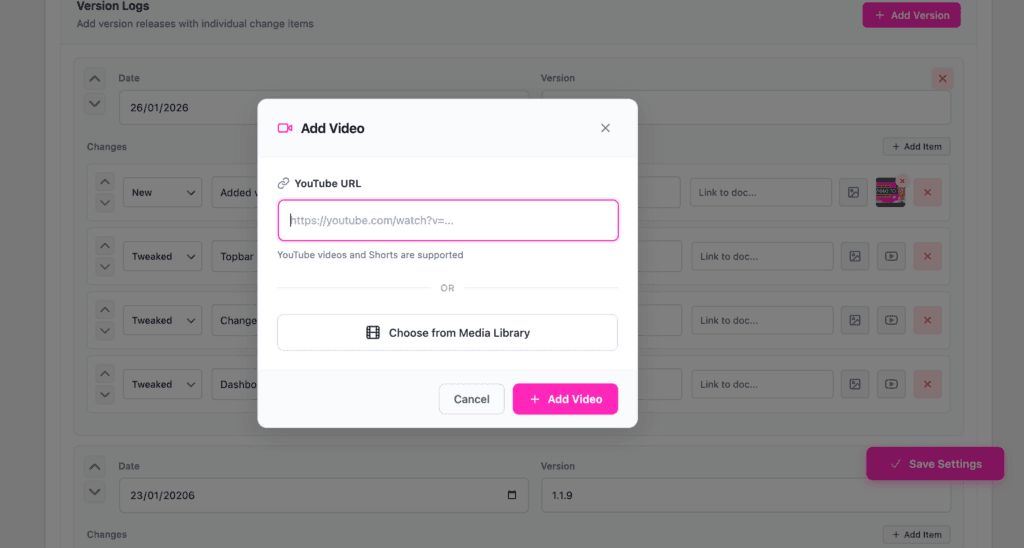
You can add a video in two ways:
Option 1: YouTube URL
- Paste a valid YouTube video or Shorts URL into the input field.
- Click Add Video.
Supported:
- Standard YouTube videos
- YouTube Shorts
Option 2: Media Library
- Click Choose from Media Library.
- Select an existing video or upload a new one.
- Confirm your selection.
After adding the video
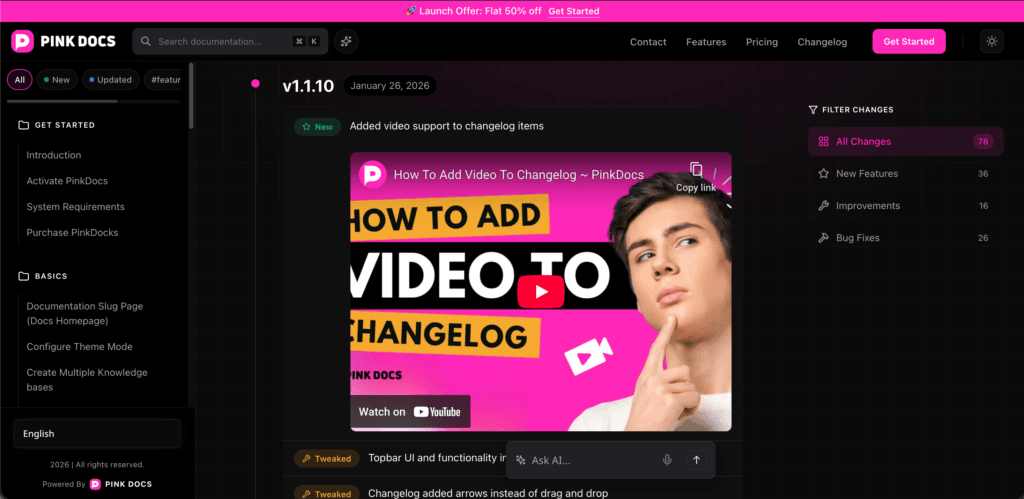
- The video thumbnail appears next to the changelog item.
- Users can play the video directly from the changelog on the frontend.
- You can remove the video anytime using the remove (×) icon.
Save your changes
After adding or updating videos, click Save Settings to apply the changes.
Best practices
- Keep videos short and focused on the specific change.
- Use videos for major UI updates or new features.
- Pair videos with clear changelog text for best clarity.
This helps users quickly understand what changed without reading long explanations.
Was this page helpful?
Great! What worked best for you?
Please provide
additional details about your experience.
✓ Thank you for your feedback! We appreciate your input.