

The PinkDocs Tabs block allows you to organize related documentation content into multiple tabs within a single section. Each tab functions as an independent container, helping keep long or complex content clean, structured, and easy to navigate.
You can add any Gutenberg block inside a tab, including text, lists, images, code blocks, steps, callouts, or other PinkDocs blocks. This makes the Tabs block ideal for grouping related information without breaking the reading flow.
Demo
- Add and manage multiple tabs from the block settings
- Fully supports nested blocks inside each tab
- Horizontal tab navigation for quick switching between sections
- Keeps documentation compact while improving readability
- Works seamlessly inside PinkDocs documents
The PinkDocs Tabs block is useful for separating steps in a guide so readers can focus on one stage at a time without excessive scrolling.
It’s ideal for feature comparisons or settings, allowing different options to be viewed side by side within the same section.
Tabs also work well for FAQs and grouped information, helping users quickly find relevant content.
For technical docs, they’re perfect for code or API examples, such as switching between languages or versions.
How to Add a Tabs Block
- Open the document or page where you want to add tabs.
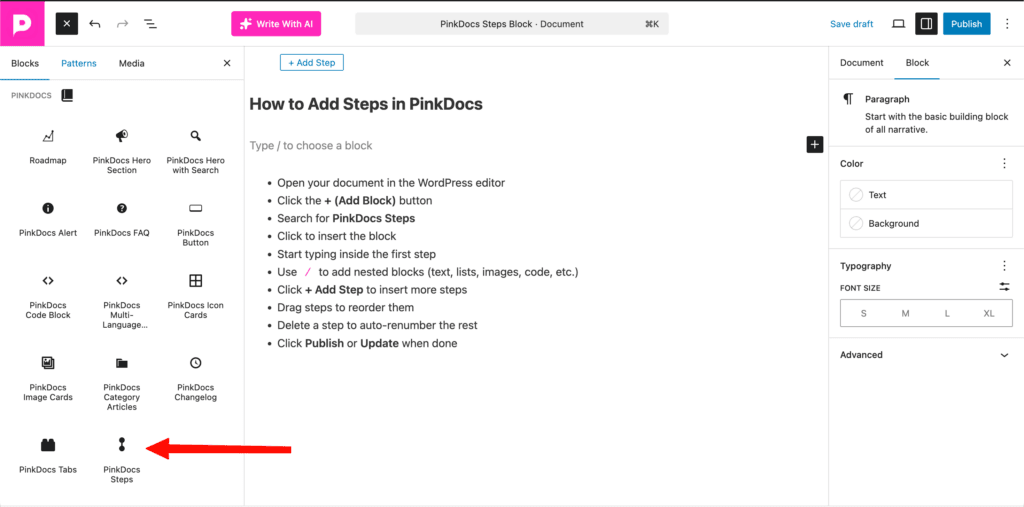
- Click the ➕ Add Block button or type
/in the editor. - Search for PinkDocs Tabs and select it.
- The Tabs block will be inserted with default tabs (for example, Tab 1 and Tab 2).
- Use the block settings panel on the right to:
- Rename tab titles
- Add new tabs
- Remove existing tabs
- Click inside a tab’s content area and add any Gutenberg blocks as needed.
Once added, the tabs will appear as a horizontal navigation bar, allowing readers to switch between sections without leaving the page.